Install Node.js
Install and manage Node.js 24 LTS with fnm, then verify npm and the runtime your project needs.
Node.js runs Saavo's development server, build commands, and tests. npm installs project dependencies. Saavo requires Node.js 22.13.0 or later, with Node.js 24 LTS recommended.
This guide uses fnm to manage Node.js. Compared with installing a fixed version directly, fnm makes upgrades, version switching, and removal easier. It also keeps projects that need different Node.js versions from interfering with one another.
Versions used in this guide
This guide was written for fnm 1.39.0 in August 2026. Node.js 24 (Krypton) is currently the LTS release, while Node.js 26 is still the Current release.
Check existing versions
Open a terminal and run:
node -v
npm -v
fnm --version- If
node -vreports version22.13.0or later andnpm -valso succeeds, your environment already meets the requirements. You do not need to reinstall Node.js just to use fnm. - If Node.js is older than 22.13.0 or the command is missing, continue by installing fnm and Node.js 24.
- If only the
fnmcommand is missing, Node.js may have been installed another way. You can keep using it as long as its version meets the requirements.
Install fnm
Choose a method for your operating system.
Windows
Open PowerShell or Windows Terminal:
winget install --id Schniz.fnm -e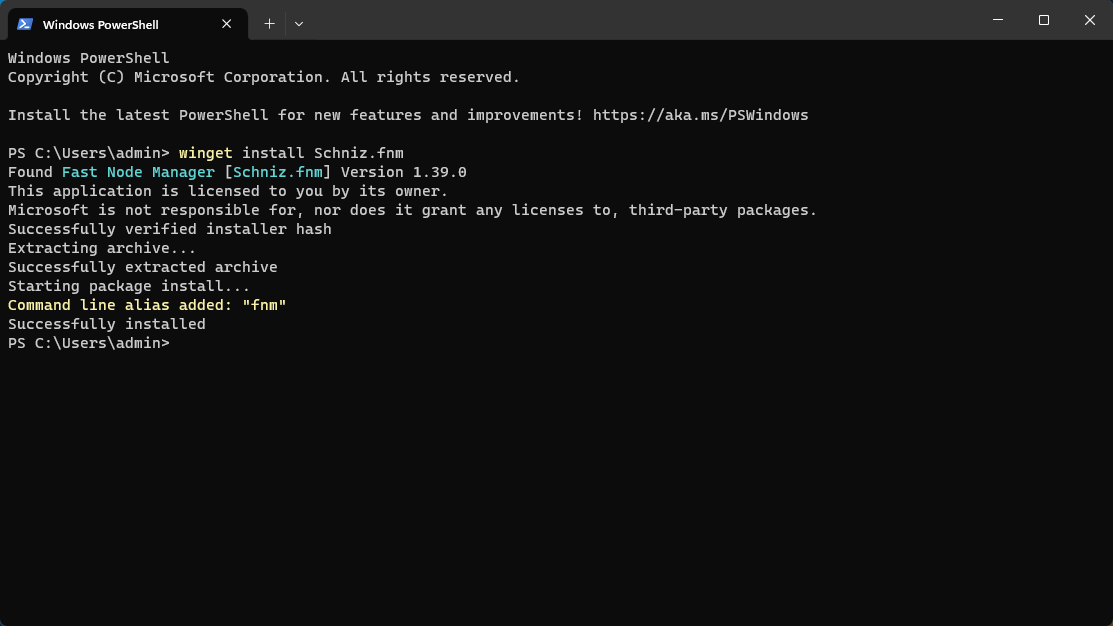
You can also use scoop install fnm or choco install fnm, or download the version for your processor from fnm Releases. Choose one method to avoid duplicate installations.
The current fnm package in WinGet is portable and registers the fnm command during installation. After installation, close all terminal windows, open a new PowerShell window, and run:
fnm --versionA version number confirms that installation is complete. You do not need to add fnm to PATH manually or edit $PROFILE just to make the fnm command available.
macOS
Install with Homebrew:
brew install fnmHomebrew installs the fnm command but does not modify your Bash or Zsh startup files. You still need to initialize your shell below.
Linux
The official installation script requires curl and unzip to be installed:
curl -fsSL https://fnm.vercel.app/install | bashThe official script automatically updates ~/.bashrc, ~/.zshrc, or your Fish configuration based on $SHELL. When it finishes, follow the terminal instructions to reopen the terminal or run the source command. Do not add the same configuration again. Manual configuration is needed only if the script cannot identify your shell or you installed with --skip-shell.
Check shell initialization
These are two separate checks:
- Running
fnm --versiononly confirms that the terminal can find the fnm program. - Running
node, switching Node.js versions, and reading.nvmrcrequire the current shell to executefnm env.
After a WinGet installation on Windows, the first requirement is usually met automatically, but shell initialization is still needed for the second. Homebrew installations on macOS also need initialization. On Linux, the official script usually writes the configuration automatically. Check the relevant file first and add the configuration only if it is missing.
Add the initialization command for your current shell to the end of its configuration file:
# Add to $PROFILE
fnm env --use-on-cd --shell powershell | Out-String | Invoke-Expression
If your PowerShell profile does not exist yet, create and open it first:
if (-not (Test-Path $PROFILE)) { New-Item -ItemType File -Path $PROFILE -Force }
notepad $PROFILE
Save the file, close all terminal windows, and reopen your terminal. Check both that the fnm command is available and that the shell has loaded the fnm environment:
fnm --version
fnm current
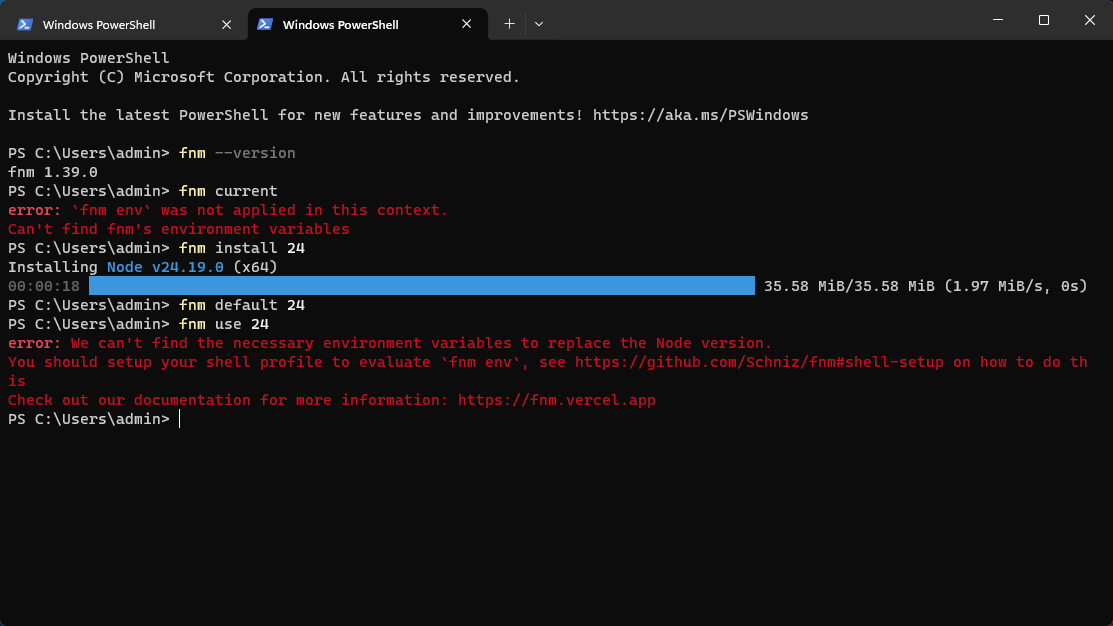
If Node.js is not installed yet, it is normal for fnm current to have no version to display. After installing and activating Node.js in the next step, use node -v for the final check.
Why the fnm environment needs initialization
After installing fnm, you need to initialize the shell environment for some fnm commands to work correctly. The example below shows an uninitialized environment:
Install Node.js 24 LTS
Run:
fnm install 24
fnm default 24
fnm use 24
These commands install Node.js 24, set it as the default for new terminals, and switch the current terminal to it immediately, respectively. fnm also provides the npm version bundled with that Node.js release. You do not need to install npm separately.
Verify Node.js and npm
Reopen your terminal and run:
fnm --version
node -v
npm -v
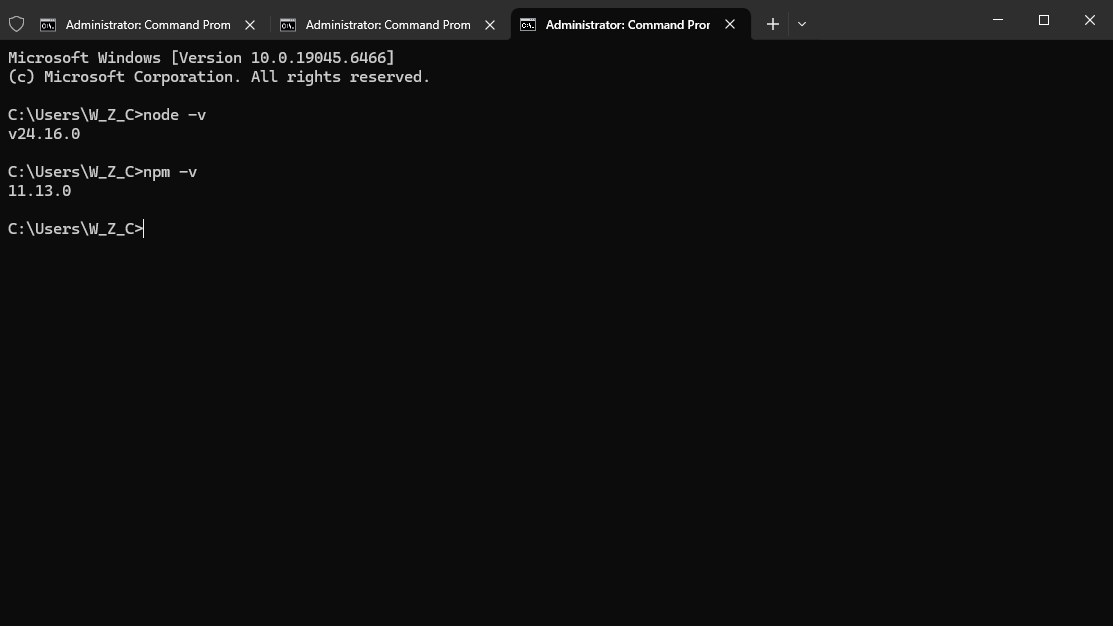
node -v should print v24.x, and npm -v should print a version number. The exact minor version changes as Node.js 24 receives maintenance updates, so it does not need to match the screenshot.
Wrangler does not need a global installation
Wrangler is included in Saavo's project dependencies. After downloading the project and running npm install, use it through npx wrangler. Do not install it globally as well. For Cloudflare authorization, see Sign in to Wrangler after installing the project on the previous page.
Windows cannot load npm.ps1
If node -v works but running npm -v in PowerShell produces this error:
npm.ps1 cannot be loaded because running scripts is disabled on this system
PSSecurityException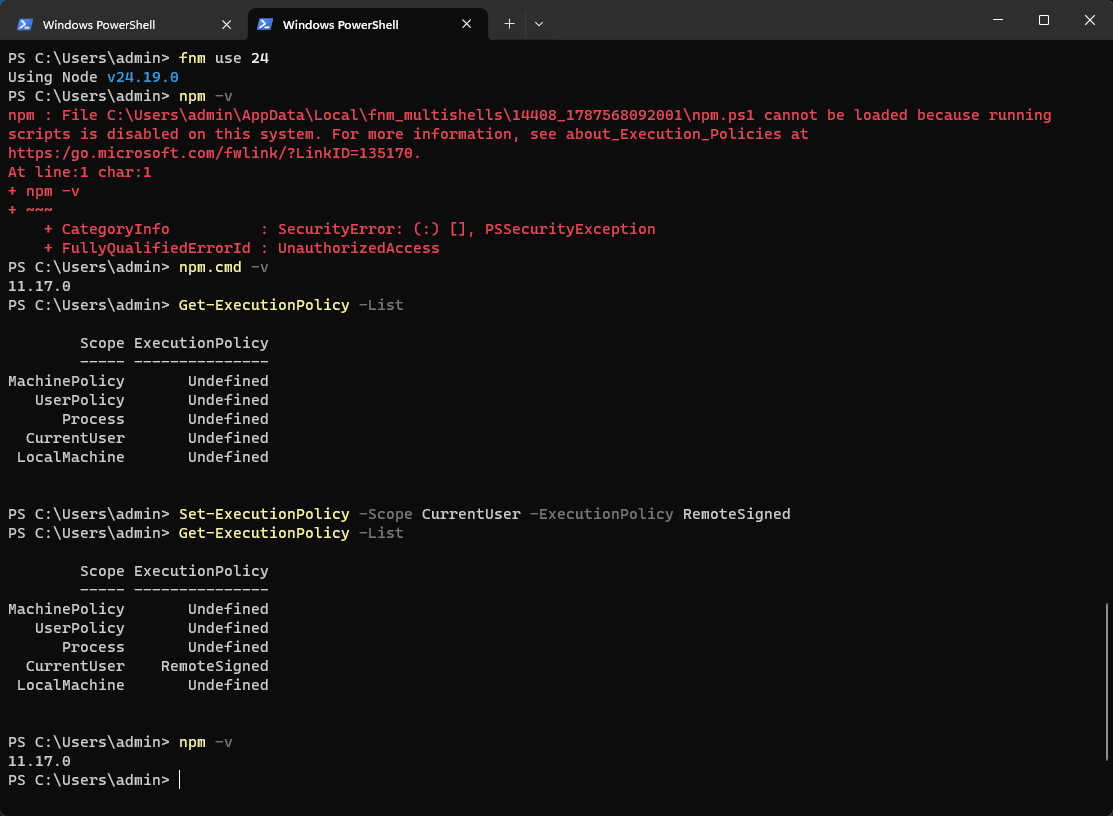
This does not mean npm failed to install. Node.js already includes npm. PowerShell found npm.ps1 when you ran npm, but the current execution policy blocks PowerShell scripts. Seeing fnm_multishells in the error path is also normal. It is how fnm makes a Node.js version available to the current terminal.
First, confirm that npm is installed:
npm.cmd -vIf this prints a version number, you do not need to reinstall Node.js or npm. As a temporary option, call npm.cmd and npx.cmd explicitly in PowerShell:
npm.cmd install
npx.cmd wrangler --version
If this is your own development computer, you can first inspect the execution policies at each scope:
Get-ExecutionPolicy -ListThen enable RemoteSigned for the current user only:
Set-ExecutionPolicy -Scope CurrentUser -ExecutionPolicy RemoteSignedConfirm the change, close and reopen PowerShell, then run npm -v and npx -v again. Do not set the entire computer to Unrestricted for convenience or use Bypass permanently.
Company computers may be managed through Group Policy
If MachinePolicy or UserPolicy is set, the current user's configuration may not take effect. Continue using npm.cmd, switch to Command Prompt, or contact your administrator. Do not try to bypass your organization's security policies.
Common issues
fnmis still not found after installation: Close all terminal windows and reopen them. If that does not help, check whether fnm has been added toPATH.fnmworks, butnodeis still missing: The shell initialization command usually has not taken effect. Check$PROFILE,~/.bashrc, or~/.zshrc, then reopen the terminal.- A new terminal reverts to the old version: Run
fnm default 24and confirm that your shell configuration still containsfnm env --use-on-cd. - Multiple Node.js installations: Run
where.exe nodeon Windows orwhich -a nodeon macOS or Linux to check whether an older installation takes precedence over fnm.