Install Git
Install Git on Windows, macOS, or Linux and configure your name and email address for commits.
Git lets you get and update project code, review changes, create branches, and commit versions. You do not need a GitHub account to install Git. You can decide whether to connect to GitHub after creating the project.
Check first to avoid reinstalling Git
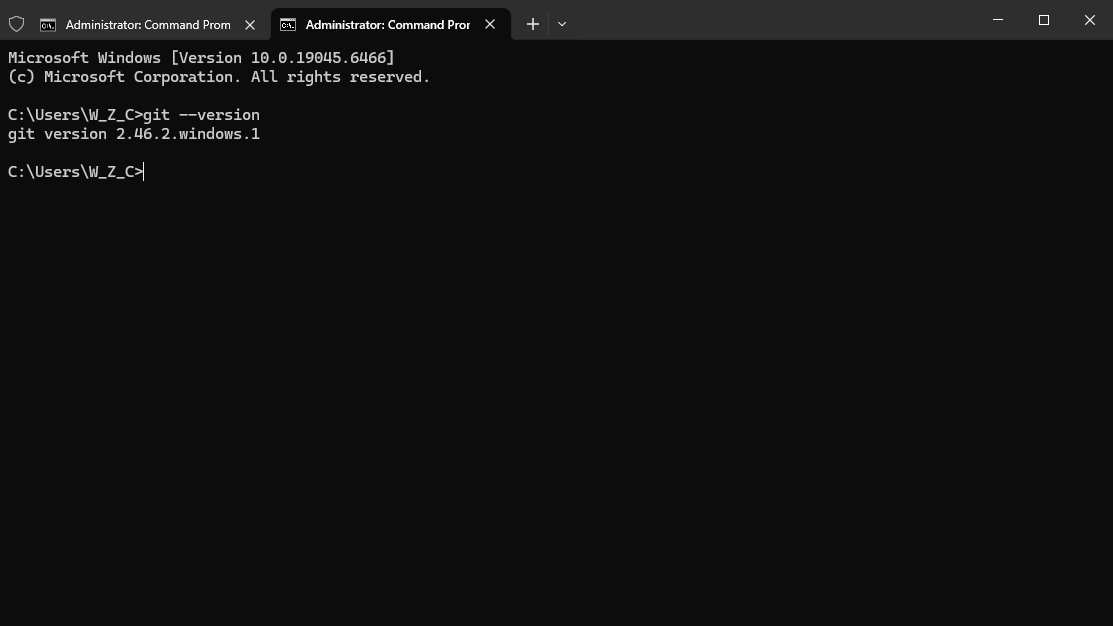
Open a terminal and run git --version. If you see a version number such as git version 2.x.x, skip to Configure your commit identity.
The simplest installation method is to download the installer and double-click it.
Windows
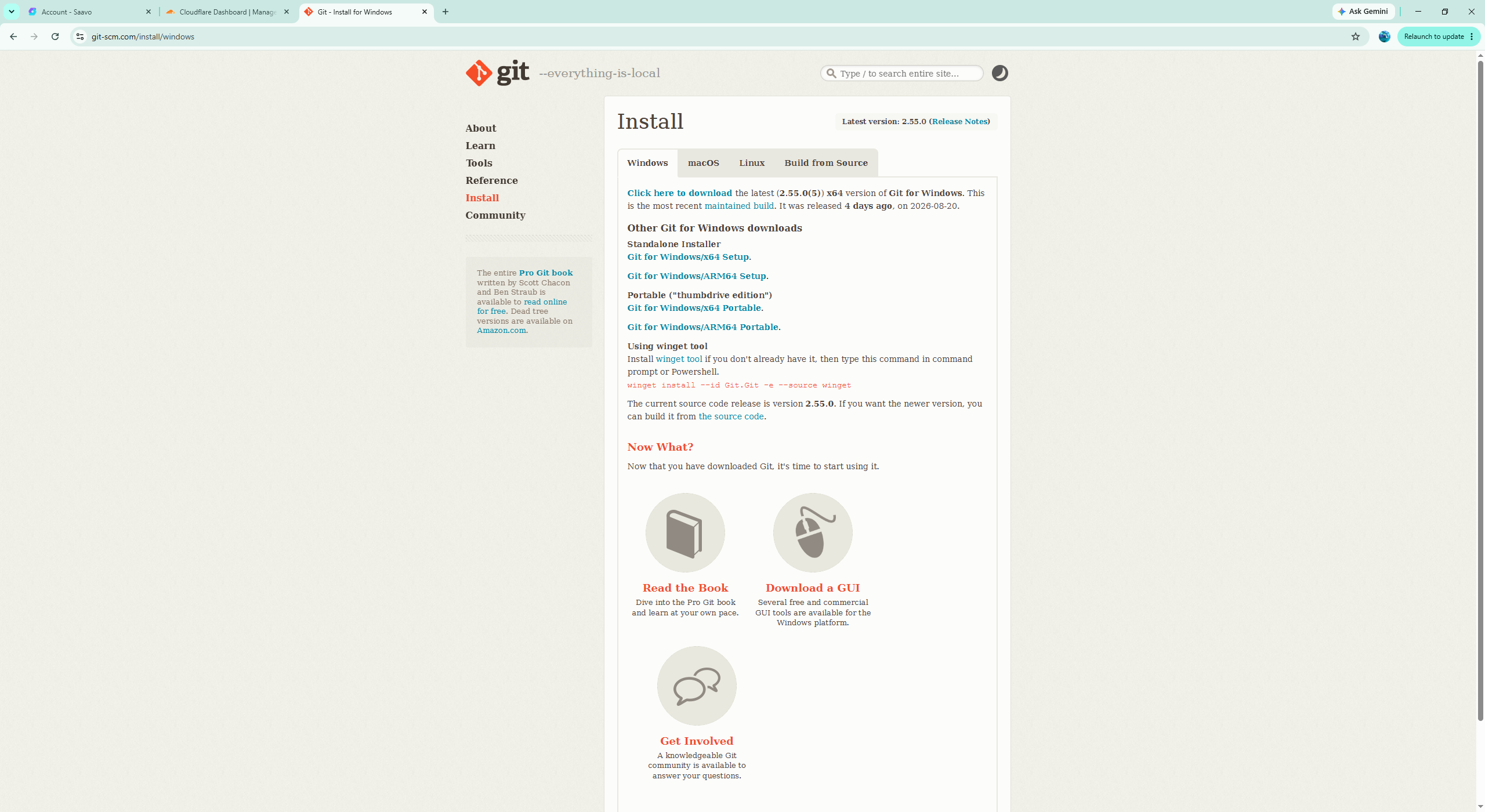
Prefer installing with winget, which comes with Windows. Open PowerShell or Windows Terminal as an administrator and run:
winget install --id Git.Git -e --source wingetClose and reopen the terminal after installation. If your computer does not have winget, download the installer for your processor from the official Git for Windows page. Unless you have specific requirements, keep the default installer options, but make sure Git is available from the command line and third-party software.
PS C:\Users\admin> winget install --id Git.Git -e --source winget
Found Git [Git.Git] Version 2.55.0.3
This application is licensed to you by its owner.
Microsoft is not responsible for, nor does it grant any licenses to, third-party packages.
Downloading https://github.com/git-for-windows/git/releases/download/v2.55.0.windows.3/Git-2.55.0.3-64-bit.exe
██████████████████████████████  62.3 MB / 62.3 MB
Successfully verified installer hash
Starting package install...
The installer will request to run as administrator. Expect a prompt.
Successfully installed
After installation, run:
git --versionA version number confirms that installation succeeded. If git cannot be found, the current PowerShell session usually has not refreshed its environment variables. Close the terminal, open a new PowerShell window, and run the command again.
macOS
On macOS, you can install Apple's Command Line Tools, which include Git:
xcode-select --installFollow the prompts in the installation window. If you already use Homebrew, you can run this instead:
brew install gitChoose either method. You do not need both installations.
Linux
Install Git with your distribution's package manager:
sudo apt update
sudo apt install git
For other distributions, use the appropriate system package manager. Compiling Git yourself just to get the latest version is not recommended unless you have a specific need.
Verify the installation
Reopen your terminal and run:
git --versionA version number confirms that installation succeeded. Saavo does not require a specific minor version. The Git version currently maintained by your operating system is sufficient.
Configure your commit identity
Git records a name and email address in every commit. We recommend configuring them before your first use:
git config --global user.name "Your Name"
git config --global user.email "you@example.com"
Replace the examples with the name and email address you want to appear in the commit history. These settings identify you in commits. They are not sign-in credentials for GitHub, GitLab, or another code hosting platform.
If the repository will be public, first decide whether you want to publish your real email address. You can also use a private email address provided by your code hosting platform. Check the settings afterward:
git config --global --get user.name
git config --global --get user.email
These commands change your global Git configuration
--global sets the default commit identity for all repositories on this computer. If work and personal projects need different email addresses, run the configuration commands inside a specific repository without --global. Repository settings override global settings.
Common issues
gitis still not found after installation: Close all terminal windows and reopen them. If Windows still does not recognize Git, rerun the installer and confirm that Git is added to the command-line environment.- Multiple Git installations: Run
where.exe giton Windows orwhich -a giton macOS or Linux to check which installation the current terminal uses. - No GitHub account yet: You can still use Git locally and continue installing Node.js. Register and sign in when you need to push to a remote repository.